


October is, as many are aware, “Cyber Security Awareness Month.” Much of the focus naturally revolves around online anonymity, and one could argue it’s a bit ironic that this month comes right before “Movember,” since growing a mustache might be the last remaining way to maintain any form of anonymity at all.
In honor of the month, we thought we’d talk about Google’s new incognito modes that have recently been rolled out, as well as online anonymity in general. This article then leads into a number of tips on how you, as an internet user, can browse anonymously and truly protect your personal privacy. So put on your tin foil hat and let’s go!
What is incognito mode?
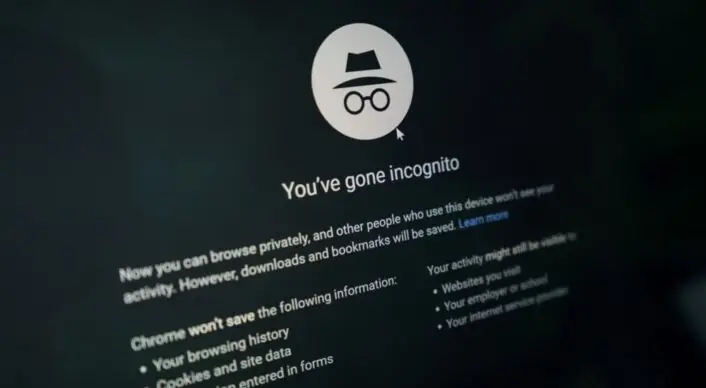
Browsing in incognito mode means that your browsing history and cookies are not saved on the device you are using. However, this does not mean that you are anonymous just because you have an incognito tab open. Your browsing activity can still be seen by your internet service provider, your employer, Google, the websites you visit, and so on.
To use a phone call analogy, browsing incognito is a bit like deleting your call history. No one will be able to see who you called on your phone, but the phone company and the people you called can of course still see that the calls were made.
Google rolls out new incognito modes
So what’s new? Google has rolled out, and will continue to roll out, new types of incognito modes for Google Maps and YouTube. For Google Assistant, user control over recorded data is also being increased—at least according to Google themselves.
Google claims that they want to give users control over their data by making it easier to manage settings for things like search history and location data in Google Maps. This is, of course, interesting to look at more closely, especially given how relevant the topic of data collection and online anonymity is today.
What does incognito mean for Google Maps?
Incognito mode for Google Maps prevents Google from saving certain types of data and removes personal settings made while browsing in incognito mode. However, it will not make you or your activities invisible to the outside world. Just like regular incognito mode, your activity can still be seen by your internet service provider, Google, and others. CNN couldn’t have said it better: “Google Maps incognito mode mostly hides you from you.”
In an interview conducted by Wired, Google Maps product manager Marlo McGriff explained that the feature is useful if you share a device with your partner and don’t want them to see your history. As an example, McGriff mentions that using incognito mode can help you avoid revealing searches for stores selling engagement rings (though we all know what he really means).
What does incognito mean for YouTube?
Incognito mode for YouTube isn’t really new in itself. It was rolled out earlier this year and is, in our opinion, actually useful. Not because it provides any real anonymity—Google can still see which videos you watch and measure views and watch time for analytics—but because videos you watch won’t be saved in your history. The benefit here is that you won’t keep getting recommendations for similar videos in the future just because you once watched something like Babblarna and don’t want suggestions like that for a long time afterward.
What’s new from Google is that you can now automatically set YouTube history to be deleted. You can choose to have your history deleted every three or eighteen months, or delete it manually whenever you want.
More control over your audio data for Google Assistant?
Google has also improved control over what you ask your Google Assistant. According to Google, you can now ask the Assistant how Google handles personal data and get direct answers about how your data is managed.
Google will also implement a feature that allows you to delete things you’ve said to your Google Assistant using your voice—by telling the Assistant to forget what you just said, or forget what you said during a specific time period.
Whether Google Assistant truly “forgets” this information is another question, but it seems reasonable to assume that Google will still be able to remember what you’ve asked your Assistant in some form.
How do you browse the web completely anonymously?
If you Google “How to browse anonymously” or “How to browse privately,” Google concludes that the best and most relevant answer is… drumroll… its own answer! That is, browsing the web in incognito mode.
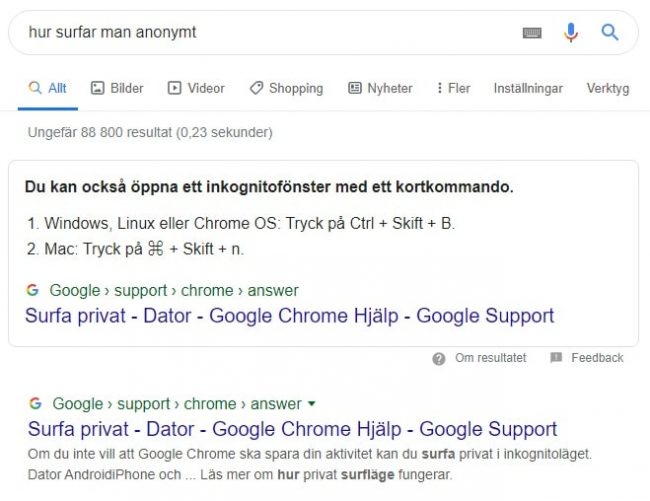
If you’ve made it this far in the article, you’ve probably realized that this isn’t entirely true—at least not if you consider anonymous browsing to extend beyond just the search history on the device you (and maybe your partner) use.
We’ve compiled a list of some measures you can take to browse anonymously. The list is ranked from least anonymity to most, but for the best protection, you should combine all four measures. If you want to browse completely anonymously, you’ll need to go even deeper.
We want to emphasize that there are many different measures one can take to browse anonymously, and it’s impossible for us to cover them all in this article. However, we’ve chosen to list four measures that together provide a solid starting point if you want to protect your privacy online.
- Browse in incognito mode
Yes, you read that right. Even though incognito mode does not make you anonymous, cookies and history are not saved on the device, which is still something. - Get an anonymous email address
Using services like Gmail or Hotmail is convenient, but not particularly private. In addition to Google being able to read your emails, you’ve also provided personal information when signing up that can be traced back to you. As a result, many people turn to encrypted email services that cannot be traced back to the user. Since the content of the emails you send is encrypted, it also cannot be read by third parties. - Browse the web using a VPN
Browsing the web through a VPN provides additional protection by preventing outsiders from seeing where you’re browsing from. A VPN connects your device to another server, making it appear as though you’re browsing from a different IP address.
What a VPN does not do is completely hide your IP address—it simply replaces it. Many VPN providers try to sell the idea that VPNs make you completely anonymous online, but that’s not true. The company providing your VPN can of course see your IP address. And if you’ve paid for a VPN, you’ve likely provided your bank details and an email address—unless you’ve set up an anonymous one (see step 2). A VPN therefore offers some protection, but not against someone who is truly determined to access your data. - Browse the web using Tor (The Onion Network)
Tor enables anonymous communication by routing traffic through a worldwide network, meaning your connection is redirected multiple times through different “hops” in the network. Tor encrypts each hop in three layers, making it extremely difficult to trace. Tor is sometimes called “The Onion Network” because, like an onion, it encrypts data in layers.
However, using Tor does not automatically make you anonymous. How you use Tor is just as important for maintaining anonymity. For example, you should not share information that can be linked back to you. Facebook is accessible via Tor, but logging in there will obviously compromise your anonymity.
As mentioned earlier, there are of course many more measures one can take to be completely anonymous online, but those listed above are relatively easy to implement and follow. If you want to go all the way, you’ll need to consider things like your operating system, how you write and communicate online, mobile usage, and more. That said, we hope this article has given you some insight into how Google views incognito mode and what you can do yourself to browse the web anonymously.
